Saving your SourceStack credentials
Overview
SourceStack users are given special credentials to allow access to the SourceStack datasets.
To collect your specific credentials and auto-save them in the SourceStack web application, follow the below steps:
Table of Contents:
#1 - Collecting your credentials
Generating credentials
In your "Welcome to SourceStack" email will be a unique link to collect your SourceStack credentials:

Click that link and you'll be taken to a page like this:
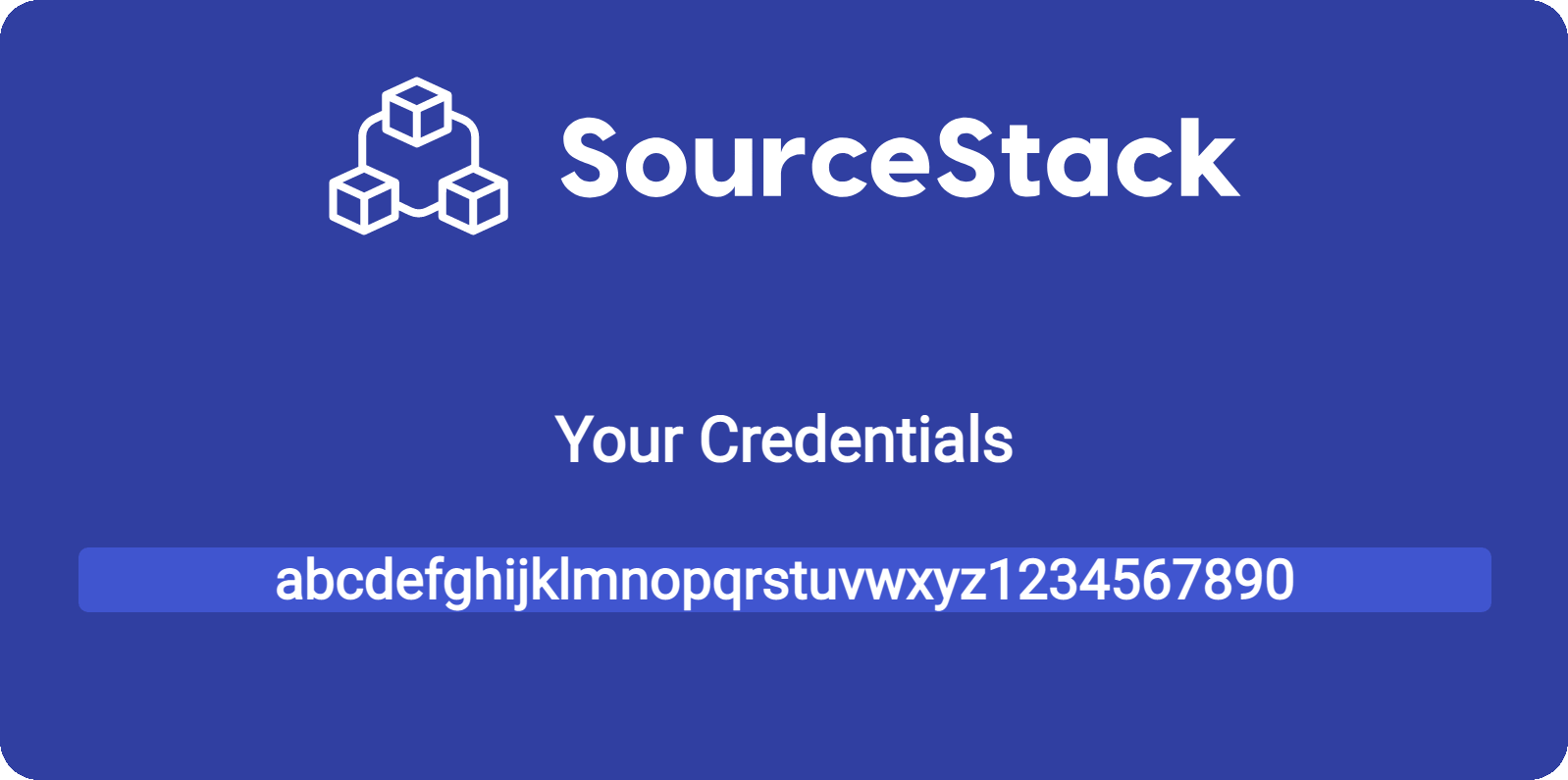
Copy the provided credentials and save them in a secure location, like:
- Your browser (examples below)
- An external password manager, like 1Password
- An API testing platform, like Postman Environment Variables
- A developer secrets manager, like an
.envfile or CircleCI
Note
For security reasons, the link itself is not permanent and will stop working 24 hours after initial use.
#2 - Saving your credentials
Saving your credentials in Chrome
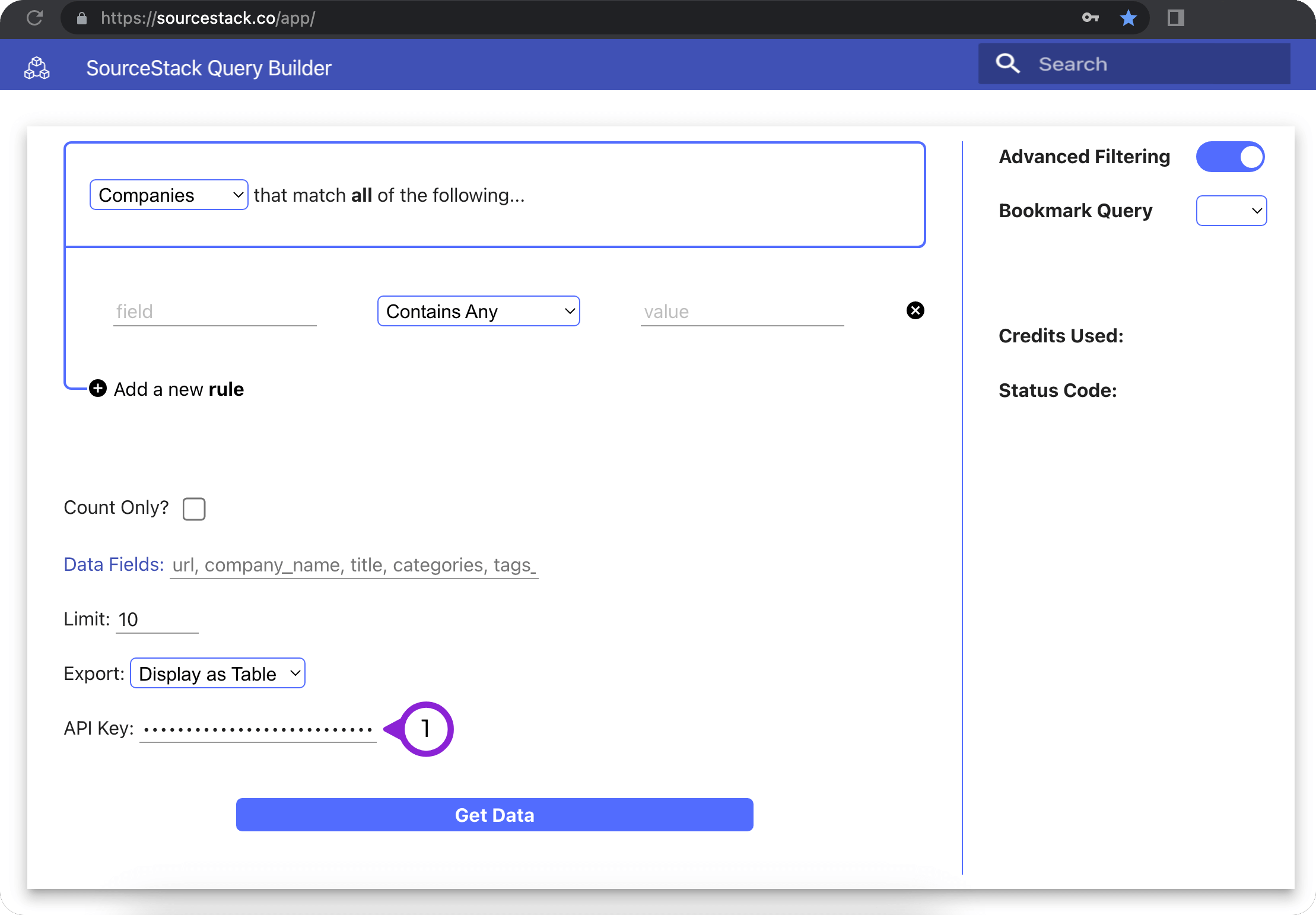
Visit the SourceStack webapp and:
1. Enter your credentials in the API Key input:
2. Click the Key icon in the top toolbar
3. Click Save
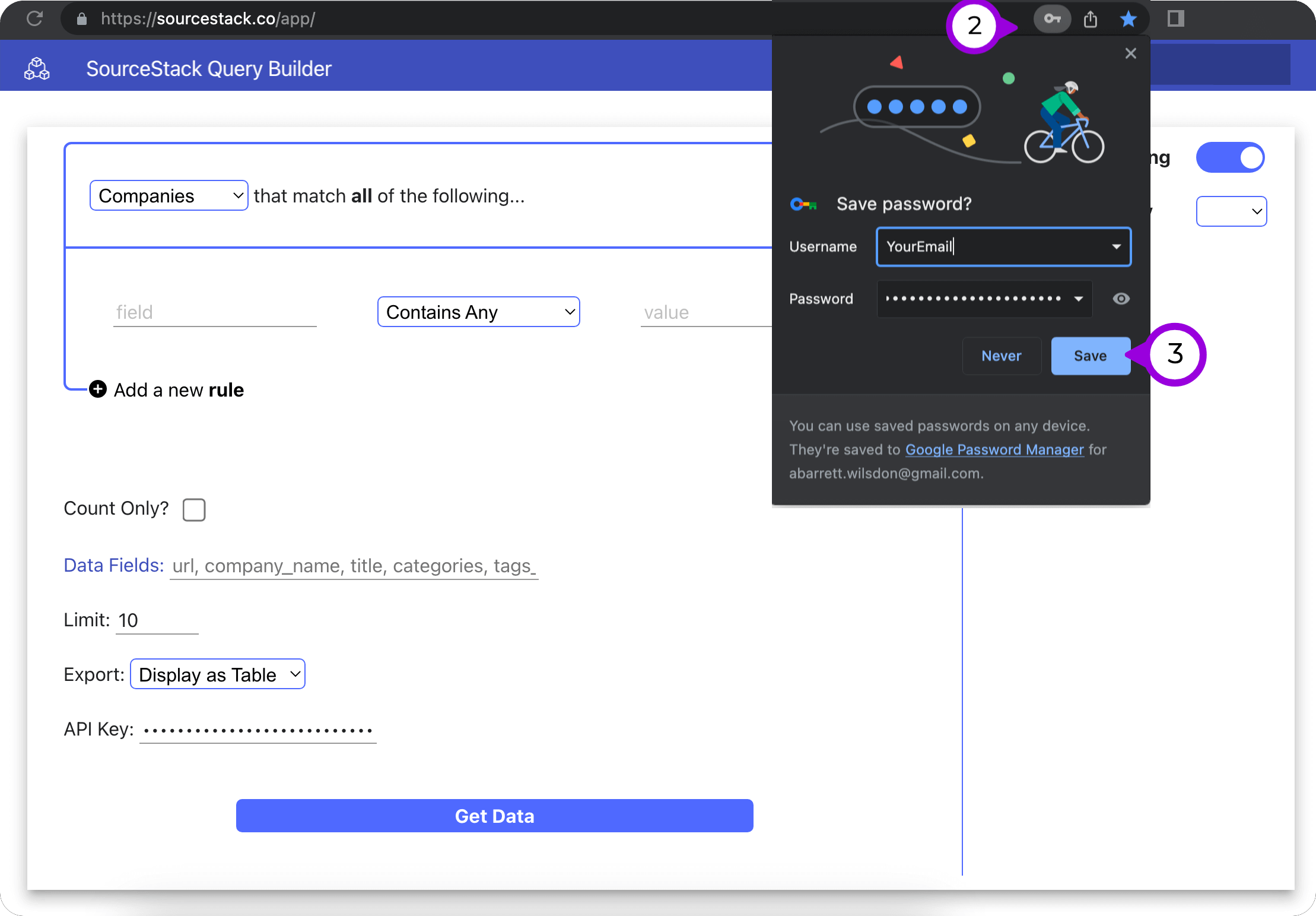
(this can be done before or after initiating a query by clicking Get Data)
Saving your credentials in Safari
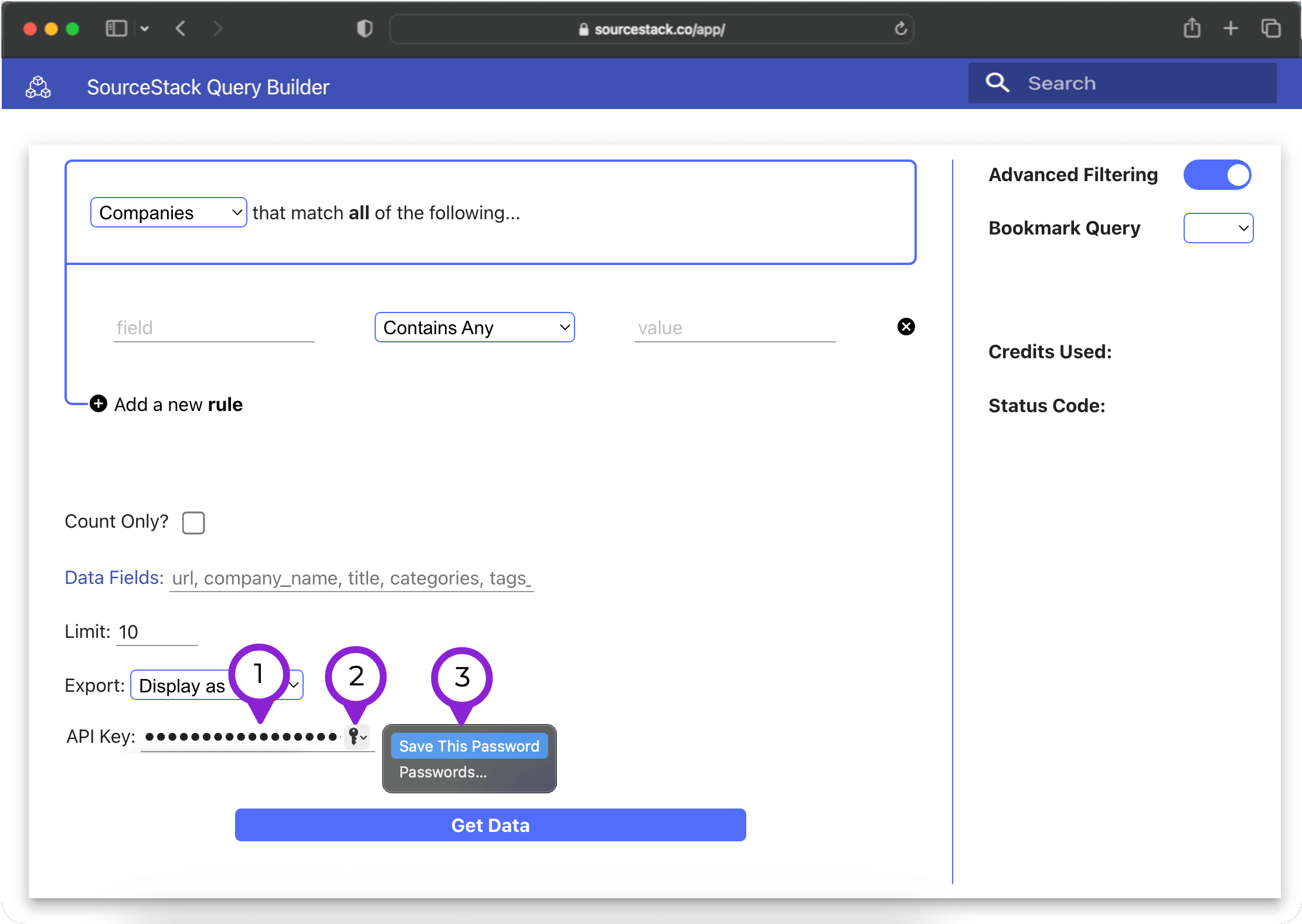
Visit the SourceStack webapp and:
- Enter your credentials in the API Key input
- Click the Key icon that appears next to the input
- Click Save This Password
Use
To use your auto-saved password in the future, click into the API Key input, and select it from the dropdown menu that appears.
FAQ
Do I have to do this every time I use the webapp?
These steps are only necessary once, unless you decide to use a different device to access the webapp in the future.
Do you support X browser?
The webapp should support any browser, even if we don't have documentation for saving your credentials in it.
Will sharing the Bookmark Query links include my credentials?
No.
Troubleshooting
Running into problems? Send us a note describing the issue - hello@sourcestack.co