Connecting JobBoard.io
Overview
JobBoard.io is a hosted job board Software-as-a-Service provider well suited for medium and large job boards.
To begin importing SourceStack data into your JobBoard.io board, follow the steps below:
Exporting from SourceStack
#1 & 2 - Set your query data fields and export
Visit Pre-Formatted Webapp
orManually complete Steps #1-2
#1 - Set your query data fields
The ideal set of fields for JobBoard.io is:
job_name, company_name, remote, city, postal_code, post_url_https, logo_url_https, job_published_at, job_expires_at, post_uuid, post_html, company_url, job_location, region, country, emails, comp_est, hours
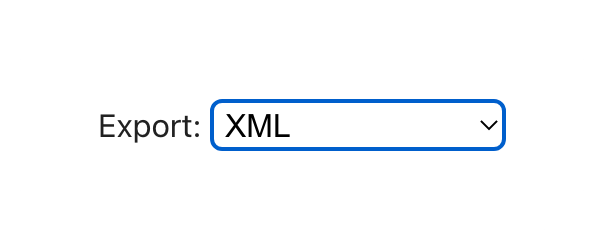
#2 - Set your query export to XML
Change this dropdown before running your query:
#3 - Set your query filter criteria
Important
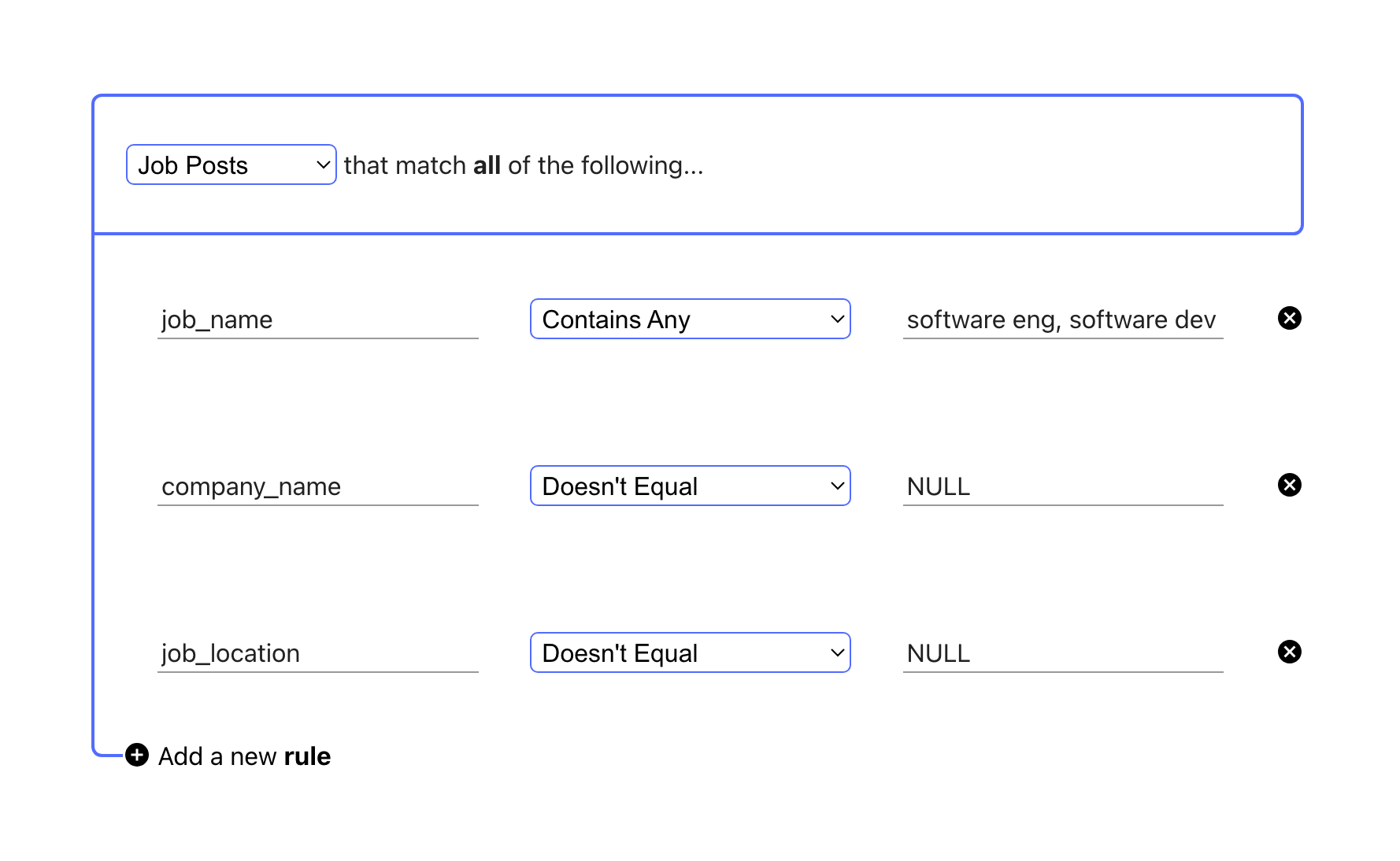
JobBoard.io's import process will reject any job where either job_location or (city and region) are empty (NULL). To avoid wasting credits, we recommend including a job_location Doesn't Equal NULL filter.
Filter down the jobs data to just the posts you are interested in - for example:
Saving your query settings
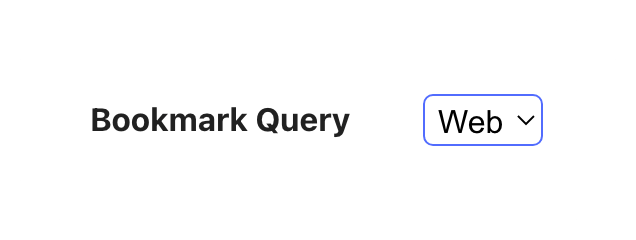
You can save your all your filter settings to your own quicklink url with the "Bookmark Query" dropdown in the right sidebar
#4 - Run the query and copy the XML link
Enter your SourceStack credentials, click Get Data, and an XML link will be generated for you:
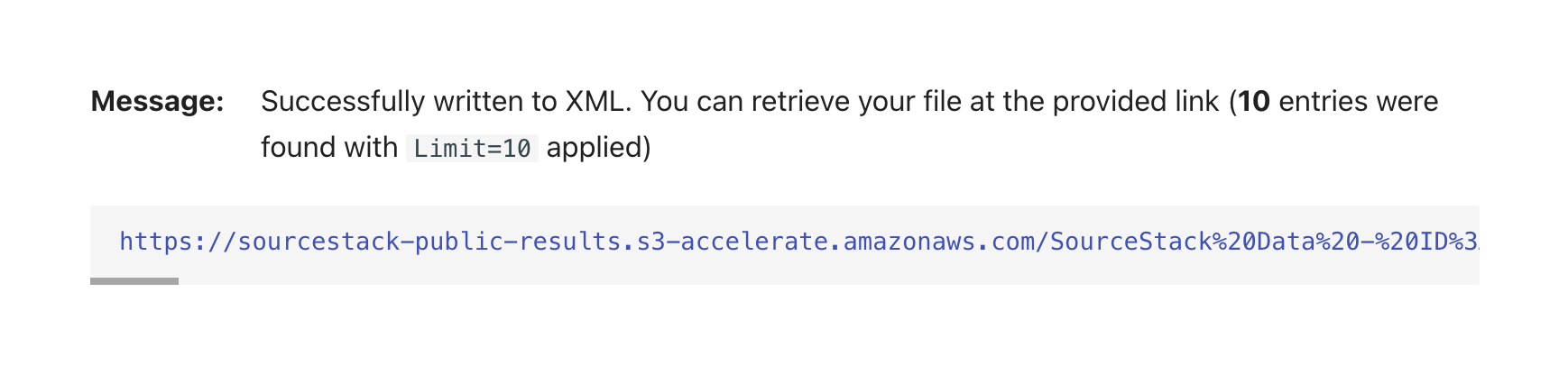
Copy the output XML url by right-clicking the link and selecting Copy Link Address.
Importing to JobBoard.io
#5 - Navigate to the JobBoard.io XML Imports Dashboard
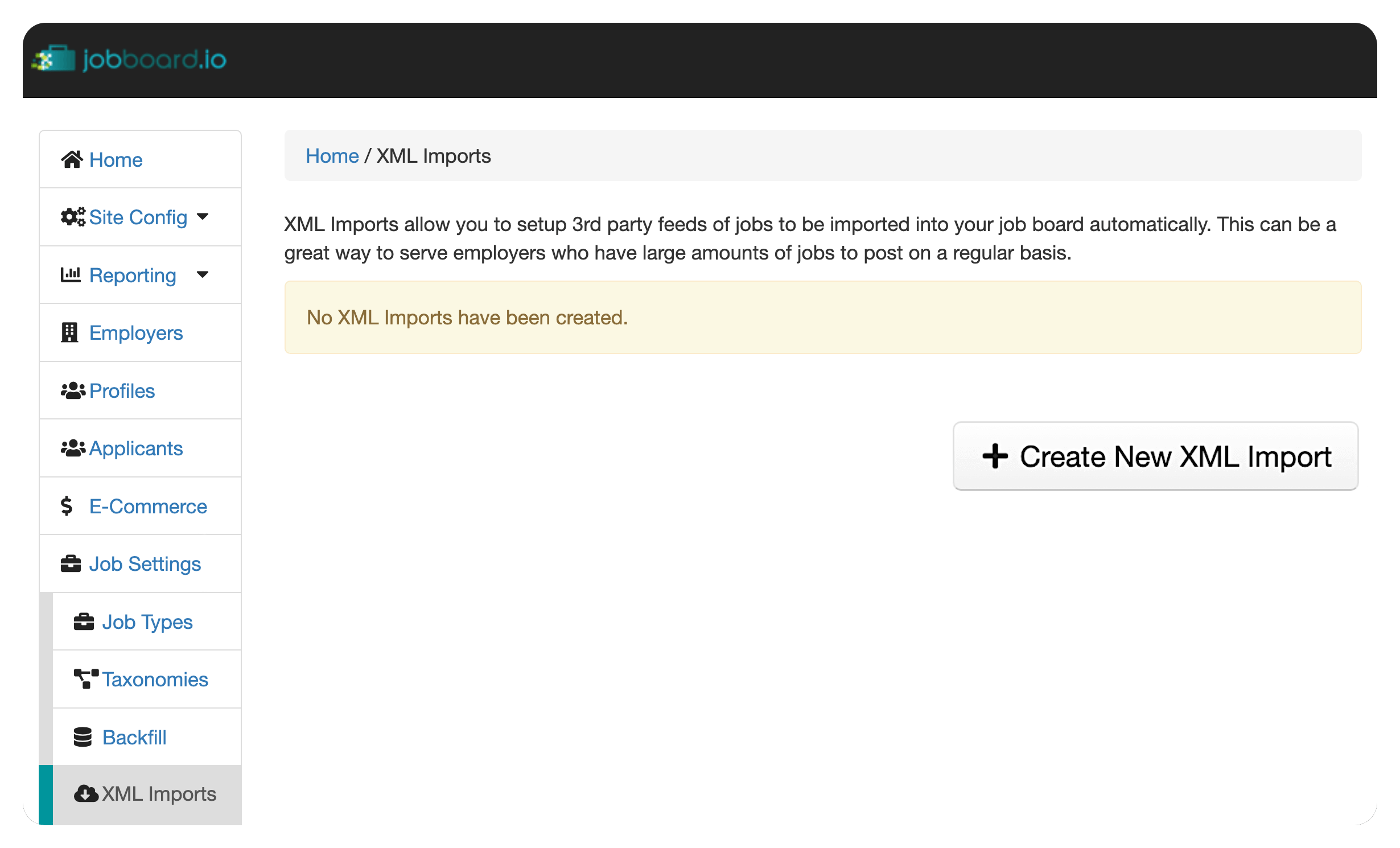
In the JobBoard.io Dashboard, click Job Settings and then click XML Imports.
Once you've navigated to the XML Imports dashboard, click the Create New XML Import button to begin a new import:
#6 - Pick a name and paste in the XML url
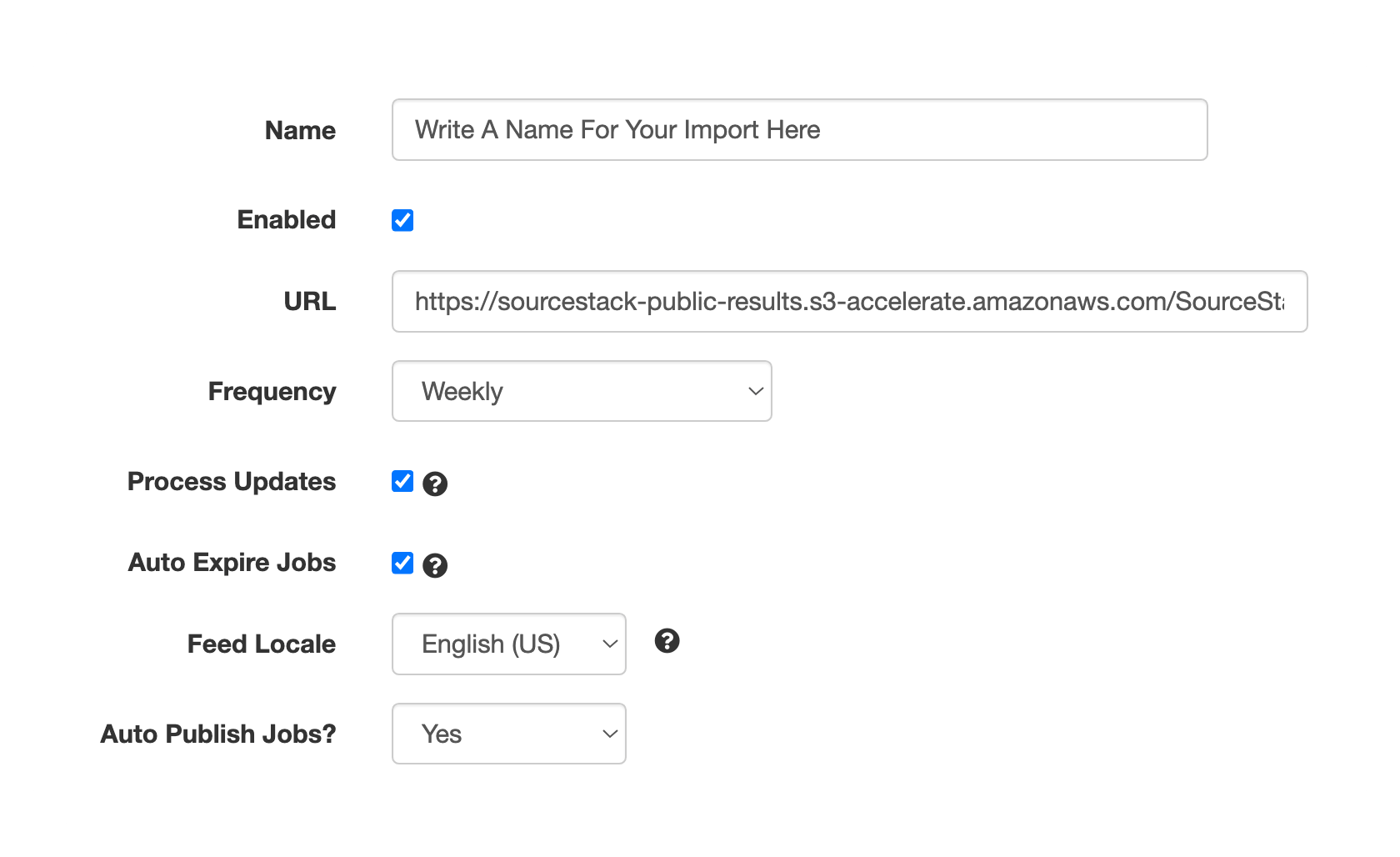
Once in the New XML Import configuration, take the XML url copied from Step #4, paste it into the URL field:
#7 - Set Other Import Configurations
Once you have pasted the XML url, complete the following steps:
- Set a name of your choice for the import itself in the Name field
- Check the box labeled Enabled
(An overview of the other import configuration options is provided in the FAQ)
#8 - Match the Data Fields
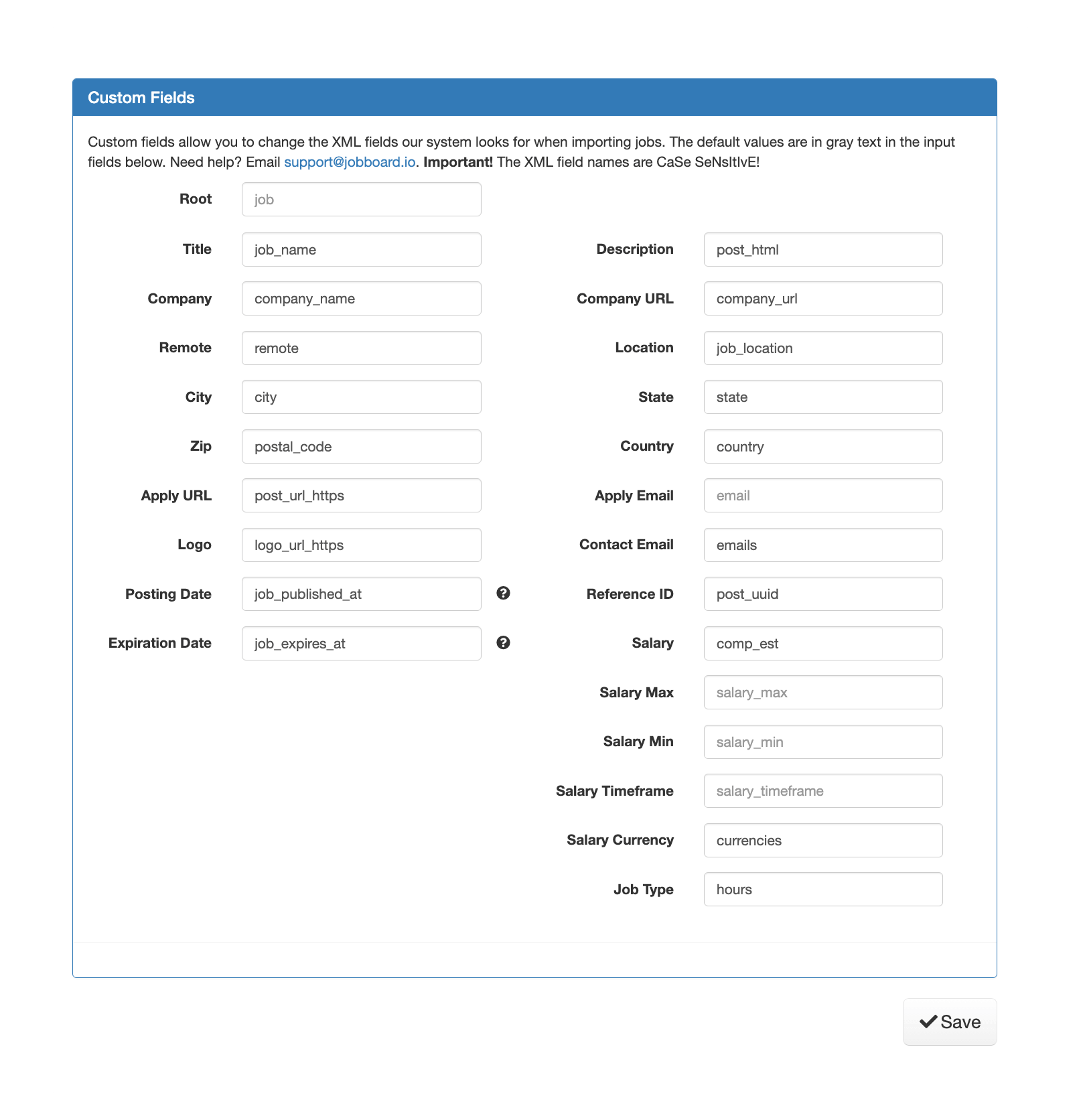
Below is a mapping of JobBoard.io's data fields to SourceStack's.
Some JobBoard.io fields will automatically pre-fill when the page loads; ensure that each field matches to the correct corresponding SourceStack field, as shown in the below image:
#9 - Save the Import settings
Click the Save button at the bottom of the page.
#10 - Monitor Your Import
After saving the field mapping, JobBoard.io will automatically parse your import settings and (after a delay) will begin the import.
Info
The wait time between completing the Import settings and JobBoard.io actually importing your jobs is between 1-24 hours. SourceStack has no control over this wait time.
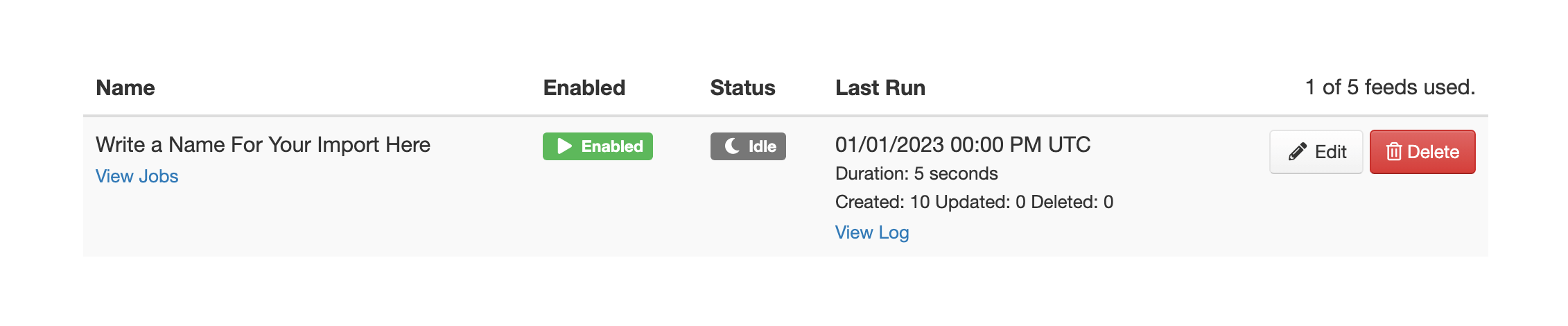
You can monitor the status of your Import and subsequent scheduled imports in the XML Imports dashboard.
#11 - (Optional) Enable the hours field
JobBoard.io's Job Types are slighly different than SourceStack's. To import data from SourceStack's hours field, you will need to make a one-time modification to your board's Job Types:
| Default | Change To |
|---|---|
Full Time | Full-Time |
Part Time | Part-Time |
Freelance | Contract |
Temporary | Temp |
To do so, navigate to the Job Types page, located in the Job Settings section.
Then, for each of the four default values, click the Edit button, and make the corresponding change.
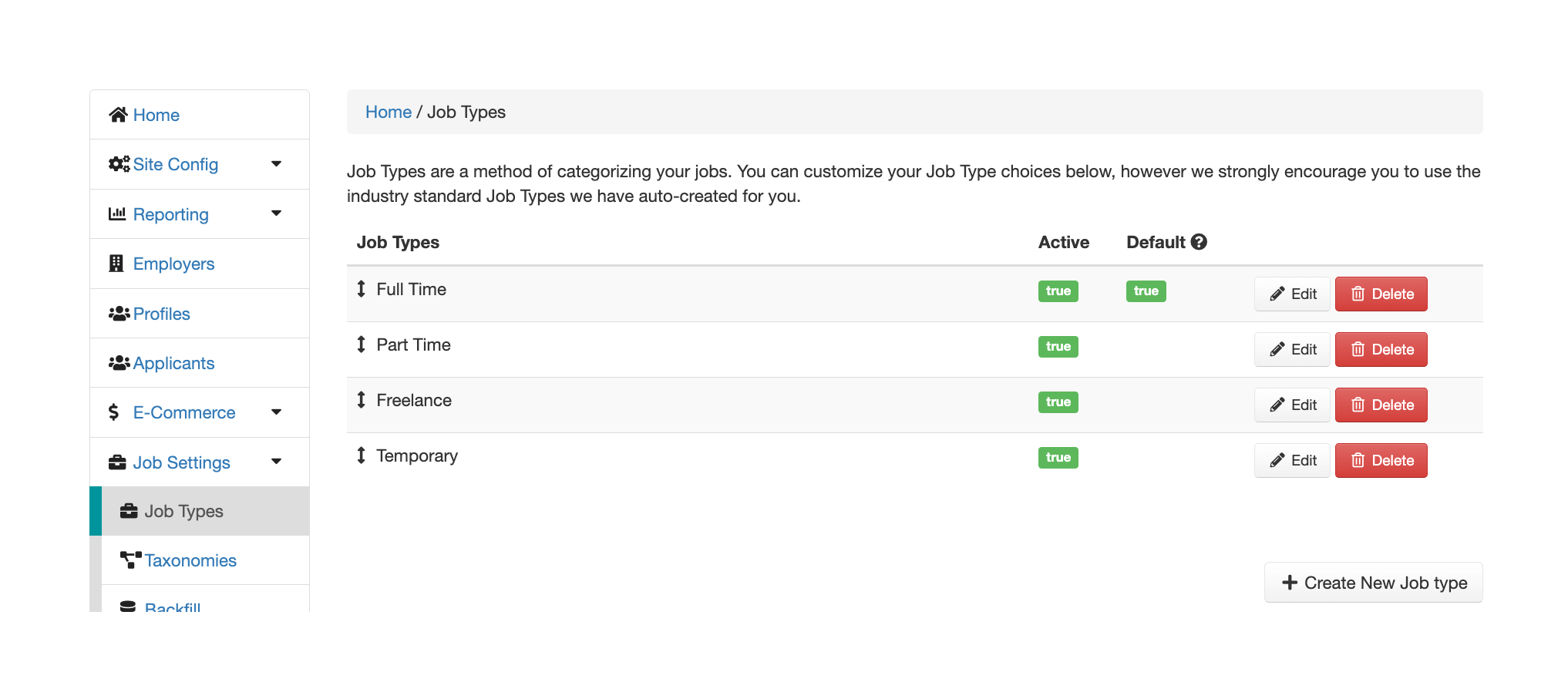
If you'd like, you can also add the other SourceStack hours values via the Create New Job Type button:
- Volunteer
- Hourly
- Commission
- Intern
- Grant
- Conditional
- Student
FAQ
Should I disable the Process Updates option?
It is generally advisable leave the Process Updates option enabled. This will ensure that on each schedule import, jobs that are currently active but have received some update will be updated on your board. The downside to this is it will overwrite any manual changes you have made to those specific job(s). If you are frequently making manual changes to imported jobs, it may be preferable to disable the Process Updates option.
Should I disable the Auto Expire Jobs option?
It depends:
-
If you are on the SourceStack Startup plan, you should disable this option.
-
If your board uses a
last_indexedorjob_published_atfilter to only retrieve jobs newly indexed or published since the last scheduled update, you should disable this option. -
Otherwise, it is generally advisable to leave the Process Updates option enabled.
Should I disable the Auto Publish Jobs? option?
It is generally advisable leave the Process Updates option enabled. If you are certain you want to manually approve each imported job before it is published on your board, you can disable this option.
Do I have to do this every time I import jobs?
It depends:
-
Startup Tier SourceStack customers will have to go through Steps #4-10 for subsequent imports, yes. The XML links generated by your queries only last 24 hours before expiring.
-
Scaling Tier SourceStack customers can generate long-lasting XML links, which will be automatically updated at the cadence of their choosing. Future imports are automatically run.
Can I schedule this import to happen at a regular cadence?
Yes, Scaling Tier SourceStack customers can schedule their XML link to update on a daily or weekly cadence.
Why were only 10 jobs imported?
SourceStack data queries have a limit of 10 set by default. To import a larger number of jobs, change the value of the limit field before clicking Get Data.
Troubleshooting
JobBoard.io has their own Import Documentation that provides additional clarity on the import process and the structure of their data fields.
Running into problems? Send us a note describing the issue - hello@sourcestack.co