Connecting GoFetchJobs
Overview
GoFetchJobs is a WordPress Plugin well-suited for small job boards built on WordPress. They integrate with many common job-board WordPress Plugins such as WP Job Manager, Careerfy, Workio, Workup, Simple Job Board, and Job Openings.
To begin importing SourceStack data into your WordPress board with GoFetchJobs, follow the steps below:
Importing to GoFetchJobs
#1 - Overview
SourceStack's integration GoFetchJobs is different than integrations with other providers, as GFJ's webapp can be used in place of the SourceStack webapp. In the Plugin settings of your Wordpress site, GoFetchJobs provides an interface to build and execute a SourceStack query.
#2 - The GoFetchJobs Interfaces
GoFetchJobs provides two user interfaces - one which pre-sets default values, and the other which allows for customizing a given data query.
Examples of each interface are provided below.
#2a - Defaults
Todo
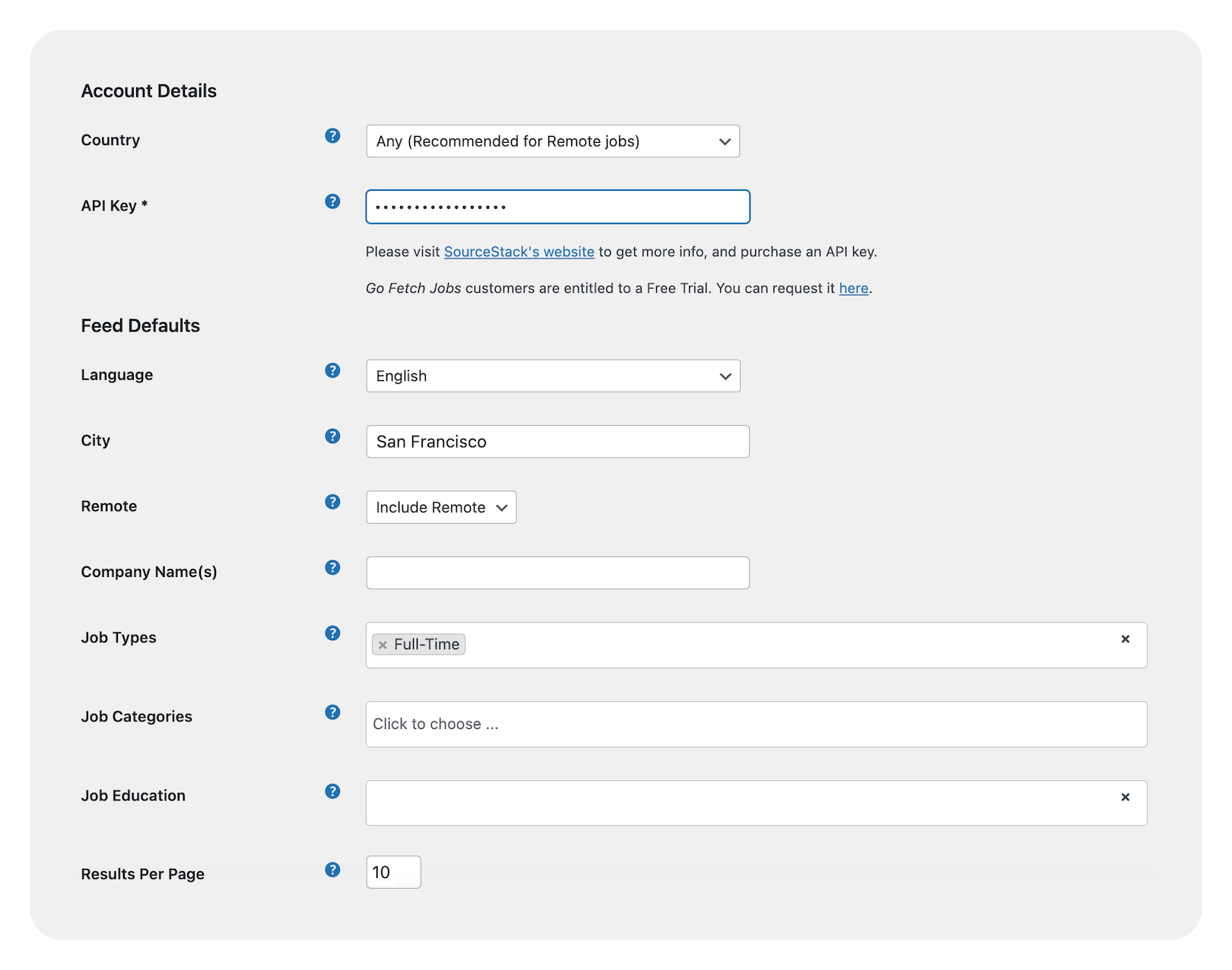
You will need to visit the Defaults page at least once to enter your SourceStack credentials in the input labeled API Key.
The below shows an example of setting the GFJ defaults to request just active Full-Time jobs in San Francisco:
Recreating this example in the SourceStack webapp
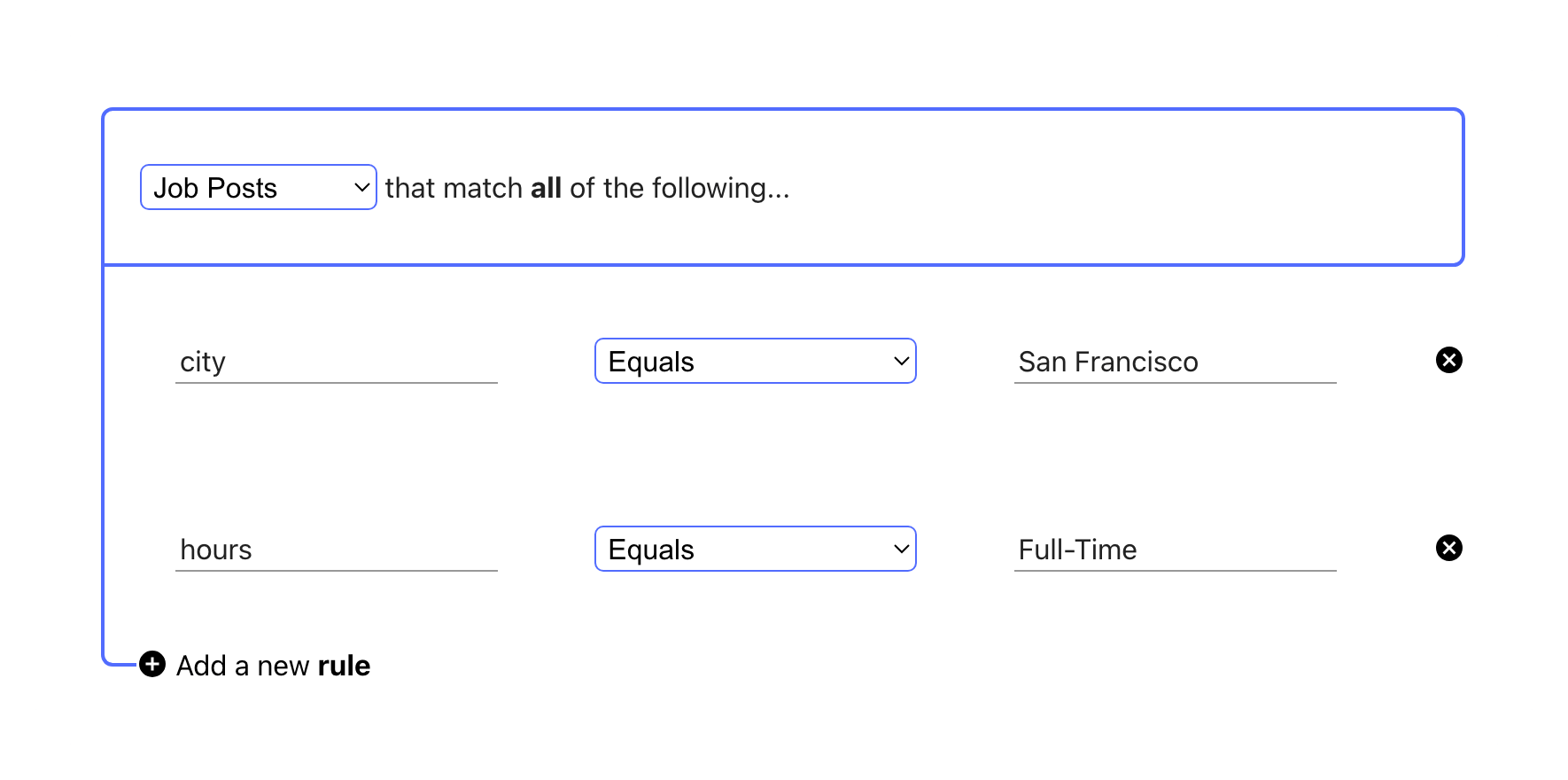
To make and run this query in the SourceStack webapp, use the following structure:
#2b - Custom Queries
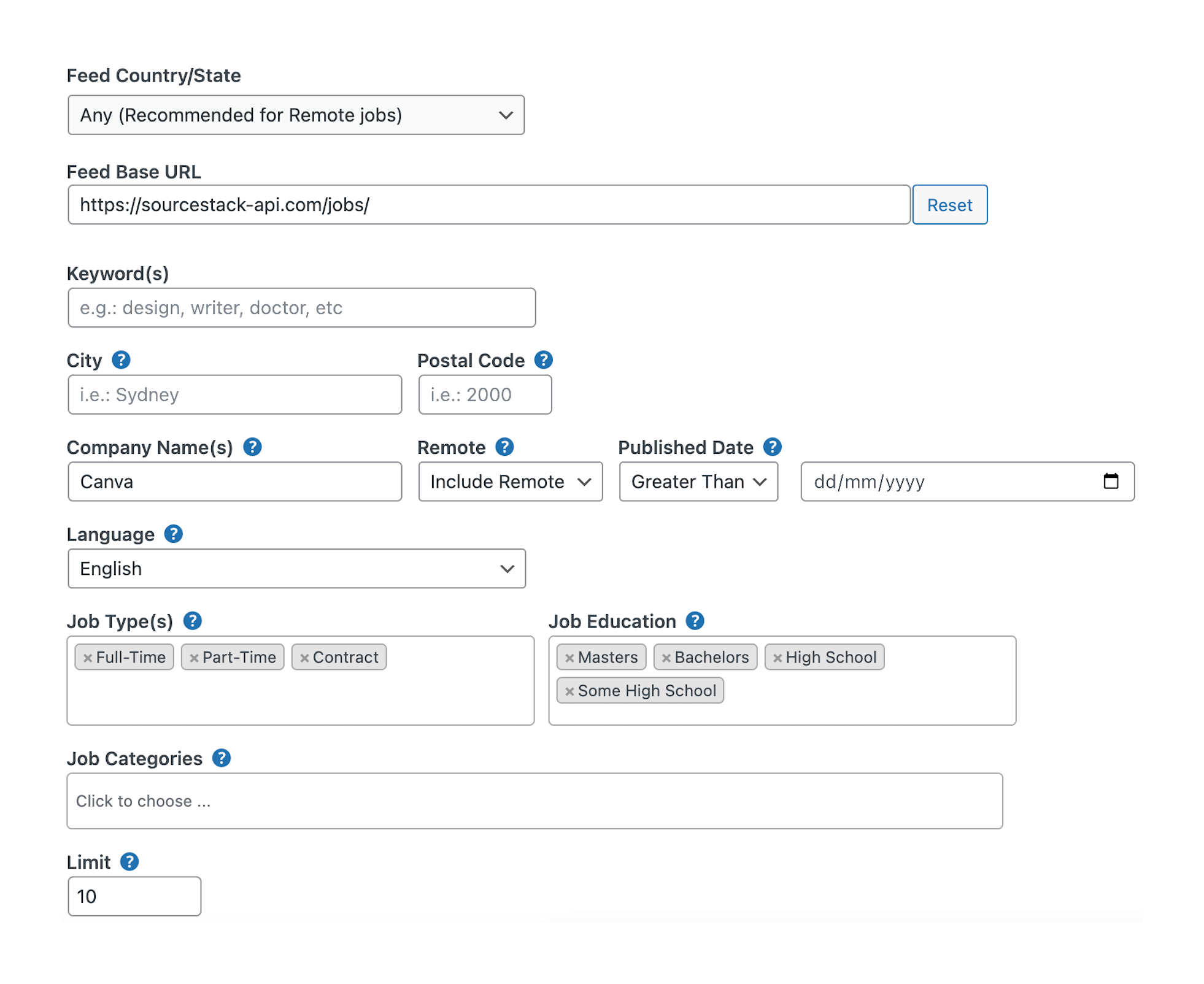
The below shows an example of using the GFJ interface to find active jobs at Canva with a given set of job types and educational requirements:
Recreating this example in the SourceStack webapp
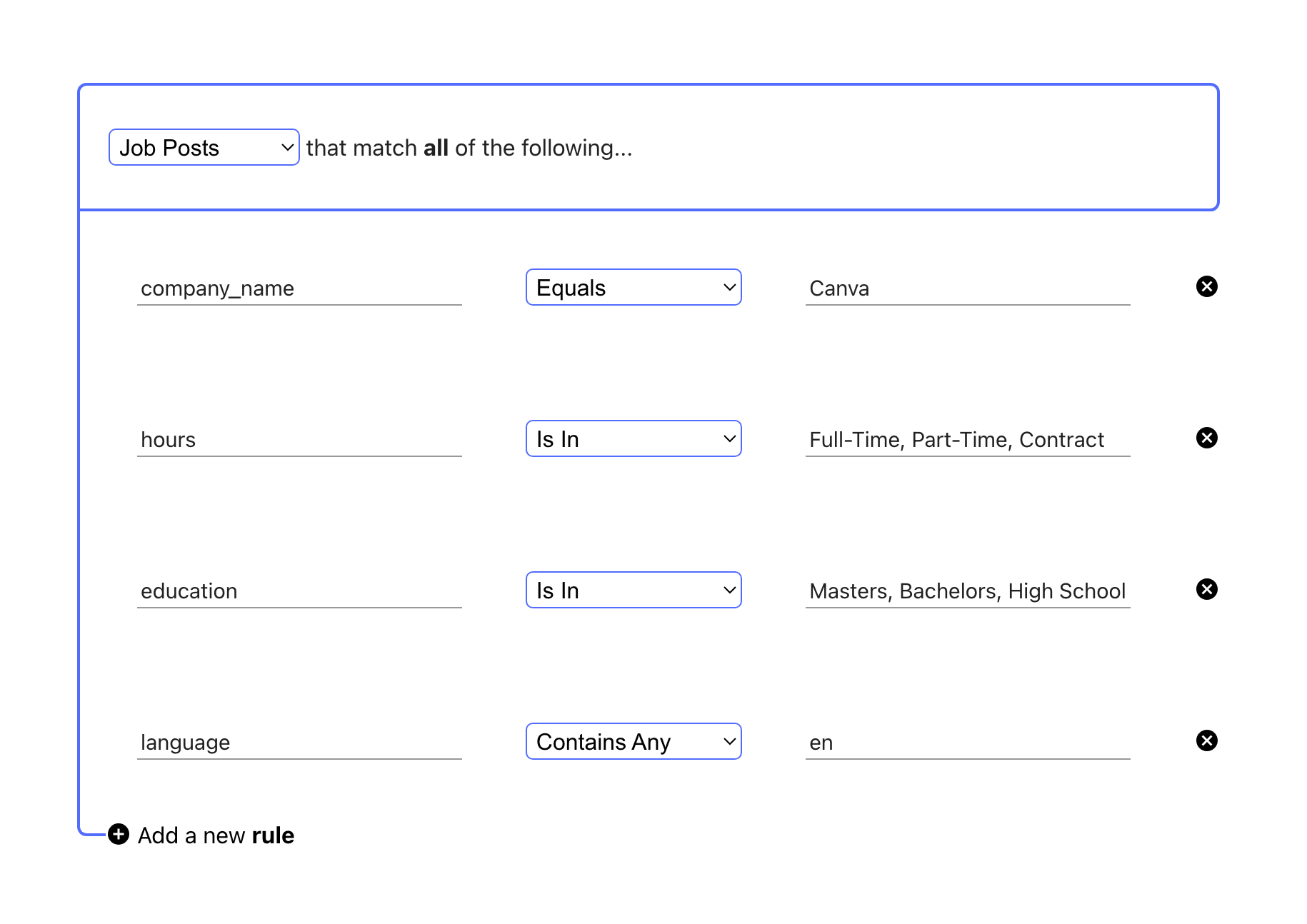
To make and run this query in the SourceStack webapp, use the following structure:
Info
The Keyword(s) and Company Name(s) inputs will accept one or more values; if more than one is provided, separate the values with commas. The Job Type(s), Job Education, and Job Categories fields will also accept one or more values; they can be selected by clicking in the corresponding input area.
After you've designed your queries, click the link below the blue button labeled click the link(s) below to copy&paste:
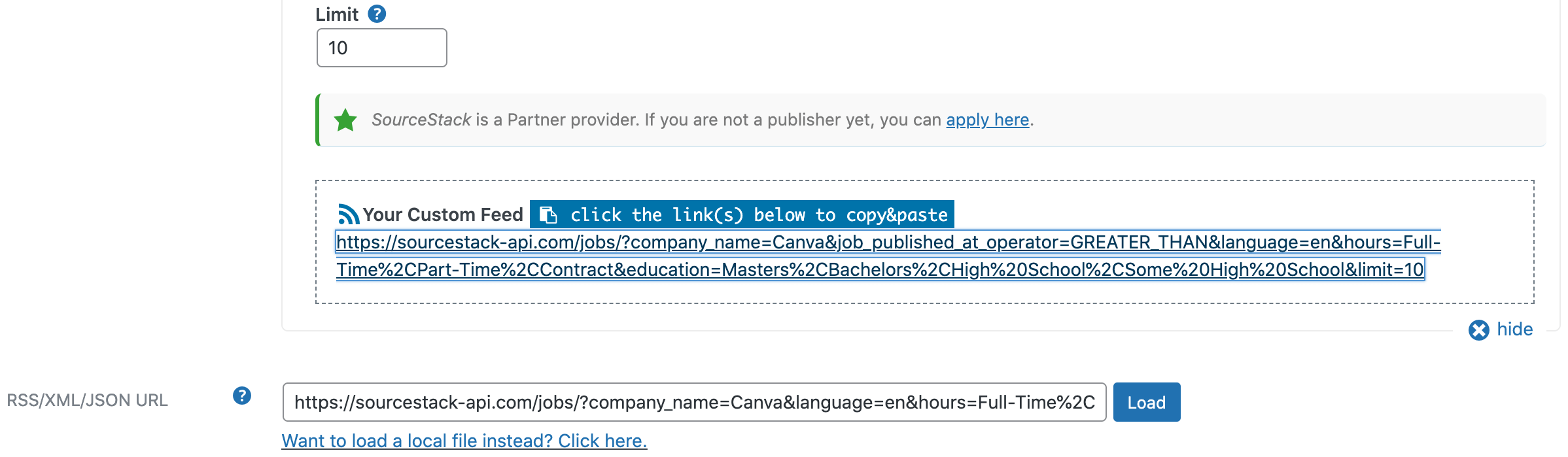
Then click the Load button to preview the data, and then the Go Fetch Jobs! button to begin the import of the jobs into your job board.
#3 - (Optional) Scheduling
GoFetchJobs supports automatically running specific query criteria on the cadence of your chosing.
SourceStack customers can take advantage of this functionality with the following steps:
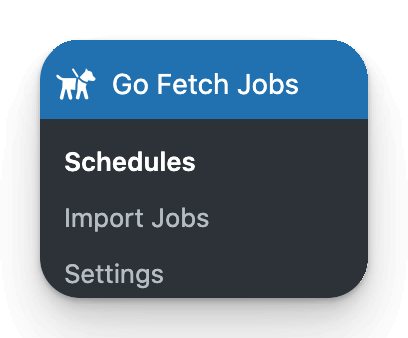
a) Navigate to the GoFetchJobs plugin in your Wordpress admin interface, and select Schedules:
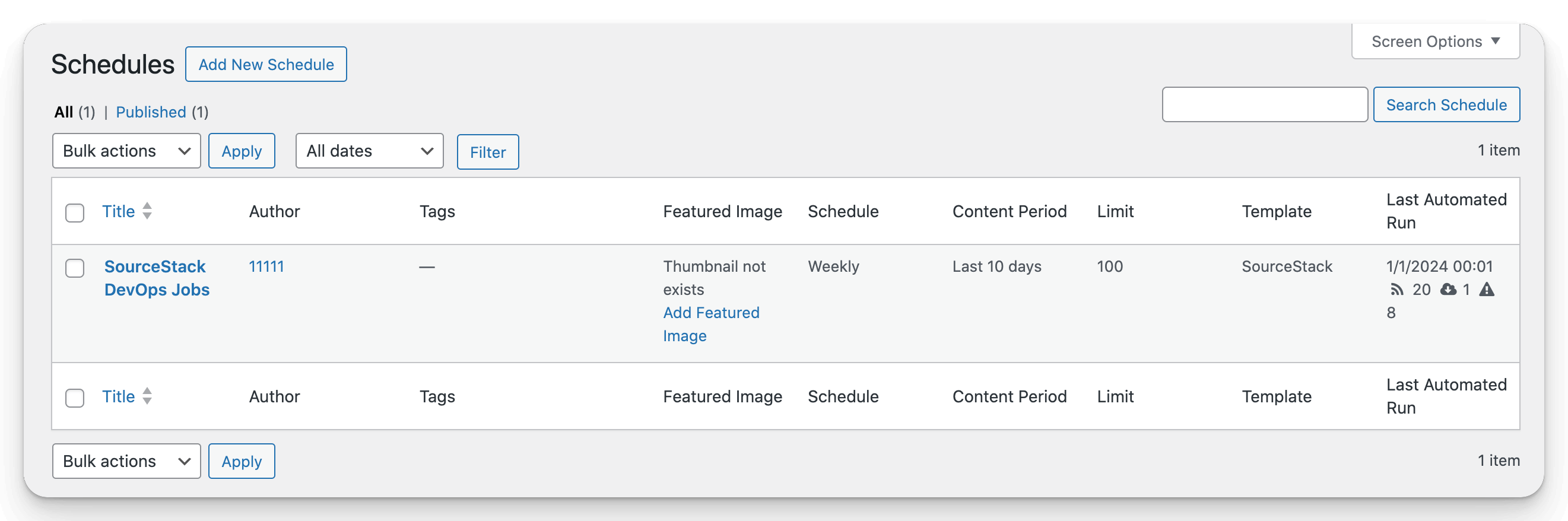
b) Then, click Add New Schedule:
c) Then, edit the four fields highlighted in green to set the Schedule's name, to select the Template with your query criteria, and to configure your preferred update cadence:
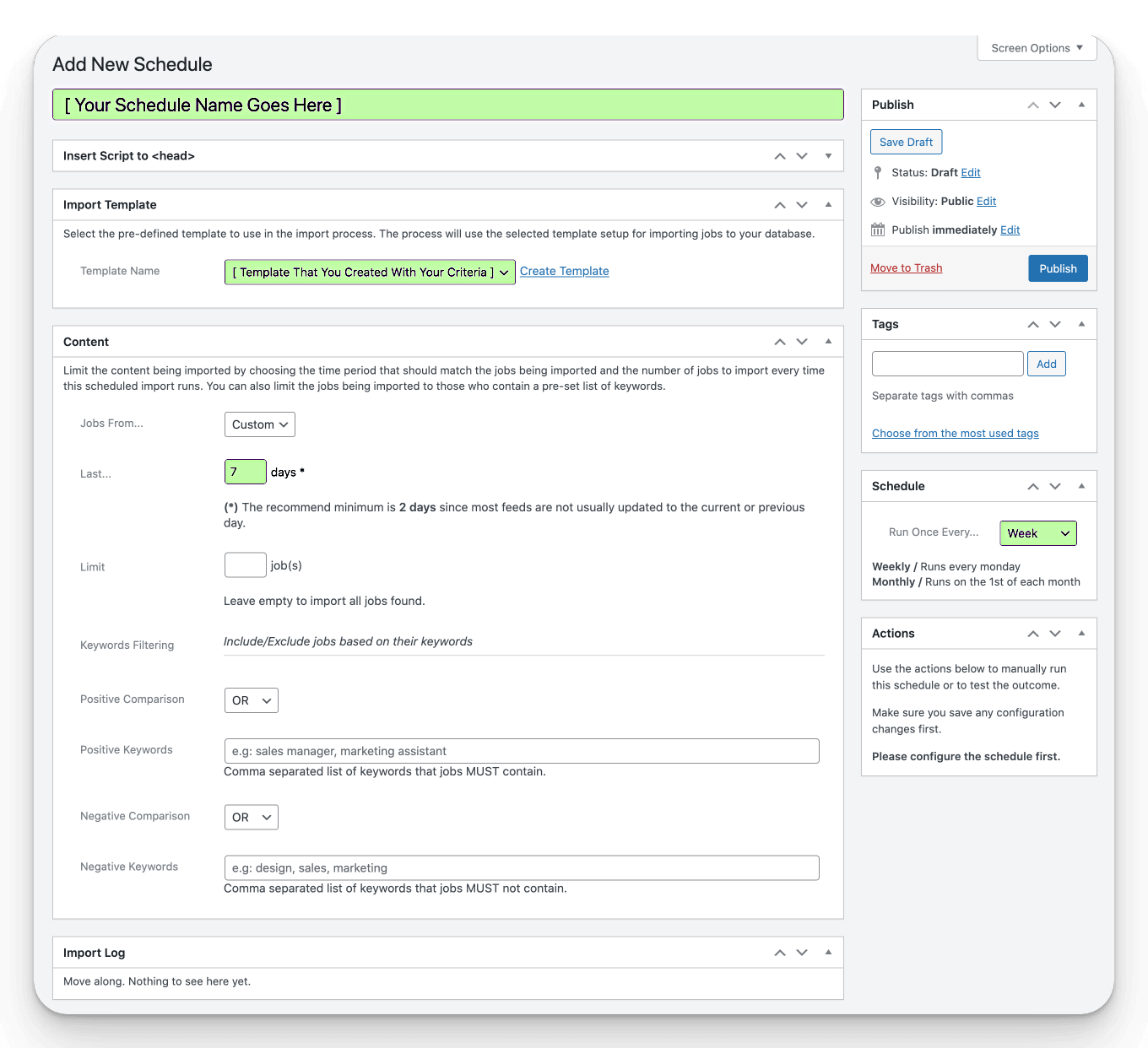
You can optionally set non-standard Status and Tags values via the modals on the right side. Do not change any other values. Configuring what types of jobs are pulled is done in the Template, not in the Schedule.
When you are finished, click Publish.
Default Schedule
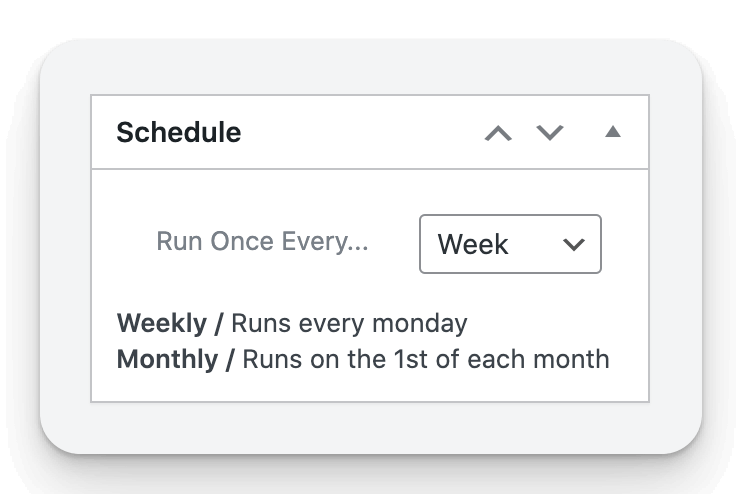
The default cadence when creating a GFJ Schedule is "Daily". You can change it to "Weekly" or "Monthly" if you prefer.
You will be charged credits each time your query runs.
#4 - Enabling Updates
Updates
It is important for the stability and completeness of your GoFetchJobs experience that you keep the GFJ Wordpress Plugin updated regularly. Thankfully, it is easy to enable Auto Updates.
First, go to the Installed Plugins section of the Plugins part of your Wordpress dashboard, scroll down until you see the entry for GoFetchJobs, and click Enable auto-updates:

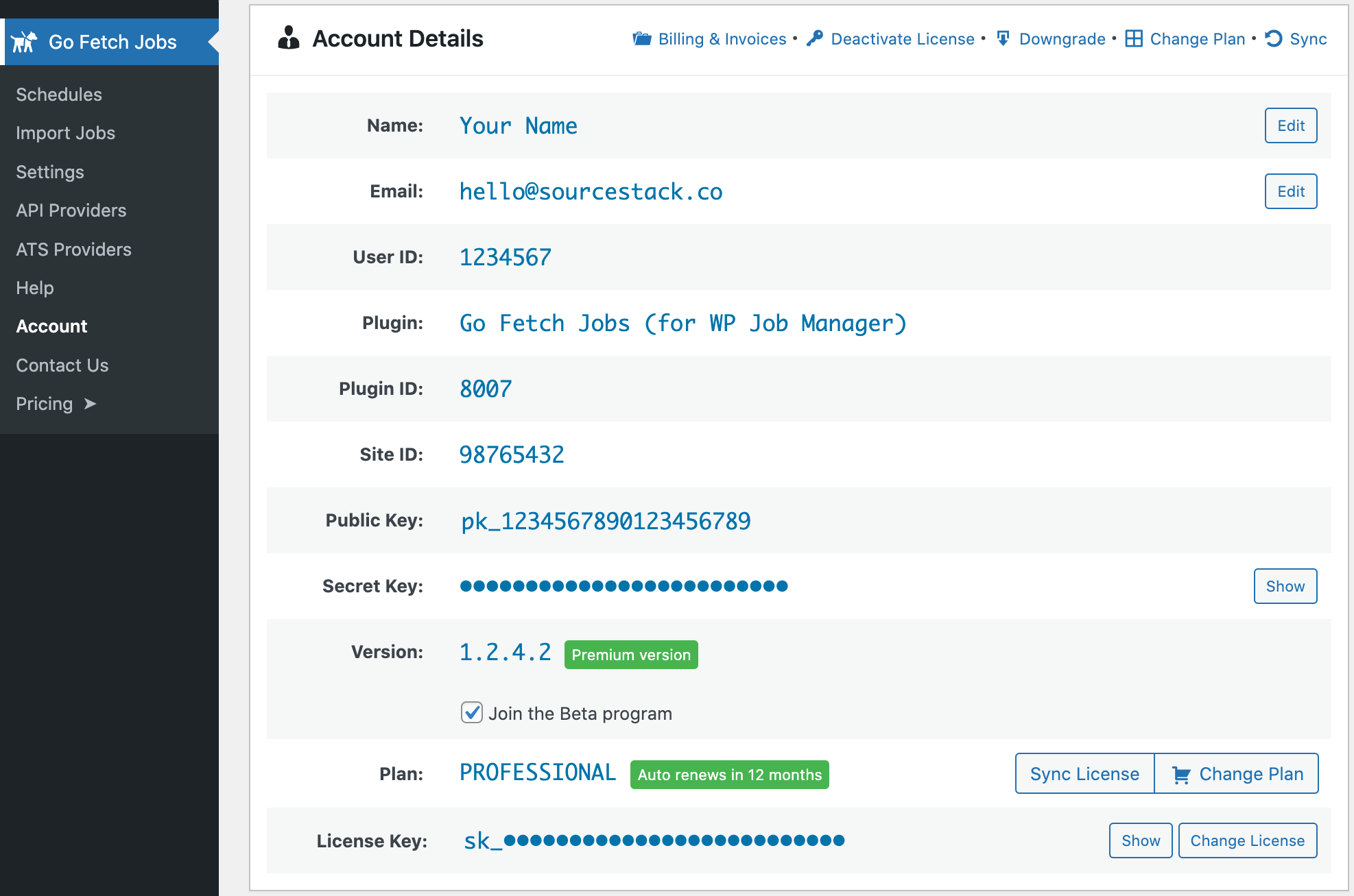
Then, just navigate to the Account section of the GoFetchJobs plugin, and check the box to enable the Beta Program:
#5 - SourceStack <> GoFetchJobs Field Mappings
The GoFetchJobs interface uses slightly different names to refer to SourceStack data fields.
Refer to the following table for an overview of each field that is available for query filtering via the GoFetchJobs interface:
| GoFetchJobs | SourceStack | Note |
|---|---|---|
Feed Country/State | country | |
Keyword(s) | job_name | Multiple phrases can be provided, separated by commas |
City | city | |
Postal Code | postal_code | Filtering on postal_code will lead to small result sizes |
Company Name(s) | company_name | Multiple exact matches can be provided, separated by commas |
Remote | remote | |
Published Date | job_published_at | This is the date when a job was first published - not when it was first or last indexed by SourceStack |
Language | language | The language the job post was written in |
Job Type(s) | hours | |
Job Education | education | |
Job Categories | categories | More than one category can apply to a given job |
Limit | limit |
All Imported Data Fields
The following SourceStack data fields are imported using the GoFetchJobs plugin:
job_name, post_html, hours, department, seniority, remote, company_name, company_url, post_url, tags_matched, categories, job_location, city, region, country, postal_code, last_indexed, logo_url
FAQ
Do I have to do this every time I import jobs?
GoFetchJobs customers can choose to import jobs one-time or to build a Schedule with their query's Template that will run automatically at the cadence of their choosing. See Section #4 for more details.
Why were only 50 jobs imported?
GoFetchJobs data queries have a limit of 50 set by default. To import a larger number of jobs, change the value of the limit field before clicking Go Fetch Jobs!.
Troubleshooting
Running into problems? Send us a note describing the issue - hello@sourcestack.co